
A polished Webflow site can still lose traffic if the SEO setup is weak. Many teams assume the platform handles most of the hard parts, then wonder why rankings stall, pages fail to index, or organic traffic drops after launch.
Webflow gives you strong controls for technical SEO, but it does not create strategy, content quality, or search intent alignment on its own. The mistakes below are preventable, and fixing them can improve search visibility, user experience, and conversions.
Why Webflow SEO Mistakes Cost You Traffic
Small setup errors can block crawlability, split authority across duplicate URLs, or reduce click-through rate in the SERP. A single bad setting in project settings can keep key pages out of Google for weeks.
Other issues are less obvious but just as costly. Weak title tags, thin content, confusing navigation, and poor internal linking make it harder for search engines to understand what each page should rank for.
This guide focuses on the Webflow problems that show up most often during launches, redesigns, and migration projects. The goal is simple: avoid the errors that hurt rankings, indexing, and on-page SEO performance.
What Webflow Handles Well and What It Does Not
Webflow supports clean code output, editable metadata fields, 301 redirects, sitemap generation, XML sitemap controls, and canonical links. It also gives you control over meta robots settings, CMS templates, slug editing, and custom code for schema markup.
That does not mean SEO is automatic. Keyword research, content quality, internal linking, header structure, search intent mapping, and technical QA still depend on your team.
If you want a deeper platform-level breakdown, see our guide to optimizing a Webflow site for search engines. If you are still evaluating platforms, this comparison of Webflow and WordPress for modern websites adds useful context.
Mistake 1: Skipping Core Webflow SEO Settings
Many Webflow SEO problems start in project settings during launch. Teams focus on design QA, then miss the settings that control indexing, sitemap behavior, and canonical logic.
Weak defaults can affect the whole site. If your pages are blocked, duplicated, or missing from the XML sitemap, Google may crawl the wrong URLs or ignore the pages you actually want to rank.
Leave the Staging Subdomain Indexable
The Webflow subdomain should not compete with your live domain in search. If the staging subdomain remains indexable, Google can discover duplicate versions of your pages and split ranking signals.
Set the staging version to noindex before launch and confirm the live site is the only version available for indexing. This is one of the simplest ways to reduce duplicate content risk in Webflow.
Ignore Sitemap and Robots Controls
Webflow can generate a sitemap automatically, but you still need to confirm it reflects your live SEO strategy. Important pages should be indexable, included where appropriate, and free from accidental blocks.

Always review robots.txt and meta robots settings after redesigns or migration work. A forgotten disallow rule or noindex tag can quietly erase search visibility.
Mistake 2: Weak Keyword Targeting and Thin On-Page Relevance
A lot of Webflow sites look excellent but target no clear topic. Strong visuals do not compensate for weak keyword research or vague page focus.
If a page is not built around real search intent, it often ends up too broad to rank and too generic to convert. That is how thin content shows up on otherwise impressive sites.
Publish Pages Without Keyword Research
Each page should target one primary topic plus closely related terms. That gives the page a clear purpose and helps shape headings, body copy, image context, and internal anchors.
A common mistake is building pages around design ideas instead of user search behavior. A beautiful page about a service still underperforms if it does not match the phrases people actually use.
Use Keywords Inconsistently
Relevant keywords should appear naturally in the title, H1, opening copy, subheads, and supporting text. If the page shifts topics halfway through, relevance signals weaken.
This is especially common on CMS-driven pages where templates look consistent but copy stays shallow. Webflow CMS makes publishing easy, but it also makes it easy to scale weak content fast.
Mistake 3: Poor Title Tags, Meta Descriptions, and Header Structure
Metadata affects rankings and click-through rate. If your title tags are vague or your meta descriptions fail to explain the page, users skip your result even when it appears in the SERP.
Header structure matters too. A messy page with multiple H1s, skipped sections, or decorative headings makes it harder for users and search engines to follow the topic.
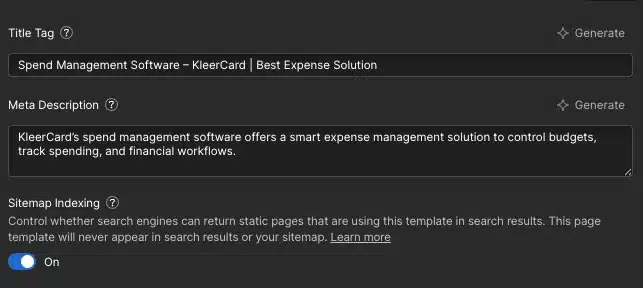
Write Title Tags for Style Instead of Search Intent
Clear, descriptive titles usually outperform clever ones. Put the main topic near the front so both Google and users can identify the page quickly.
Branding-first titles often waste valuable space. If the actual service or topic appears too late, the page loses relevance and clicks.
Break Header Hierarchy
Every page needs one clear H1 and a logical H2 and H3 structure beneath it. That improves readability, accessibility, and topical clarity.
Poor header structure also weakens on-page SEO. When headings do not reflect the real page topic, search engines get mixed signals about what should rank.
Mistake 4: Duplicate Content and Canonical Problems
Duplicate content creates indexing confusion and splits authority across similar URLs. In Webflow, this often comes from a live domain competing with a staging subdomain, CMS templates with overlapping copy, or leftover URLs after migration.
Canonical links help search engines understand which version should be treated as primary. Without them, similar pages can compete against each other.
Forget Canonical Tags on Similar Pages
A canonical tag is useful when similar pages must exist for users but should consolidate ranking signals. This often applies to product variants, location pages, archived resources, or filtered content.
Review canonical links carefully on CMS templates. Template-driven publishing can create many near-duplicate pages if the content is only lightly customized.
Create URL Variants During Migration
Migration often introduces URL structure problems such as trailing slash changes, slug edits, and duplicate archived pages. Even small differences can trigger duplicate indexing if redirects are incomplete.
Validate all 301 redirects after launch and confirm canonical targets point to the preferred version. Check for 404 errors, broken links, and old URLs still receiving traffic.
Mistake 5: Weak Internal Linking and Confusing Navigation
Internal linking helps distribute authority and shows Google how pages relate to each other. It also helps visitors discover deeper pages that are not obvious from the main navigation.
Confusing navigation creates weak crawl paths and poor user experience. If important pages are buried or reachable only through one menu click path, they are easier to miss.
Rely on Menus Alone
Menus are not enough for strong site architecture. Important pages need contextual links inside body copy, resource hubs, and related CMS sections.
A service page linked from the homepage, a category hub, and a related article usually performs better than one linked only in the navigation. Multiple paths improve crawlability and engagement.
Use Generic Anchor Text
Anchor text should describe what the linked page offers. Repeating “learn more” across a site gives weak relevance signals and does little for users.
Use descriptive phrasing that fits the sentence naturally. For example, our review of Webflow’s AI site builder and our page for brands that need a dedicated Webflow design team both show how anchor text can stay natural without sounding forced.
Mistake 6: Slow Performance From Heavy Media and Design Choices
Slow page loads are common on visually ambitious Webflow builds. Large media files, autoplay video, layered interactions, and script-heavy pages can drag down site performance and Core Web Vitals.
That affects more than speed scores. Page speed influences user experience, mobile usability, crawl efficiency, and conversion rates.
Upload Uncompressed Media
Oversized images, background videos, and unoptimized assets are frequent bottlenecks. Many pages load media far larger than the actual display size.
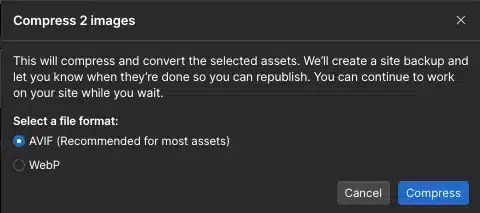
Use image compression, modern formats, and properly sized assets before upload. Add lazy loading where appropriate so below-the-fold media does not delay the initial render.
Overcomplicate Layouts and Interactions
Too many interactions can make a page feel impressive in a review and frustrating in real use. Heavy animation, autoplay media, and complex layouts often create slower rendering and weaker usability.
Responsive design should still feel fast on average mobile connections. If the visual layer gets in the way of content, both users and rankings suffer.
Mistake 7: Neglecting Image SEO and Accessibility Signals
Image optimization supports discoverability and accessibility at the same time. On image-heavy Webflow pages, small misses add up quickly.
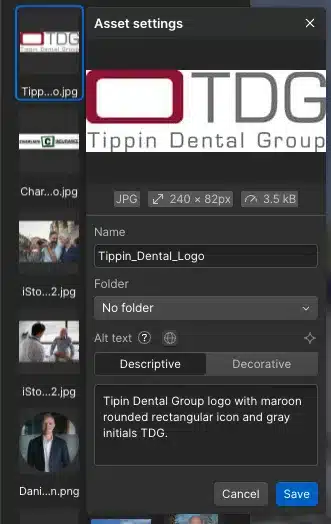
Google uses page context, image file names, alt text, and surrounding copy to understand visuals. Users with assistive technology rely on those same signals for clarity.
Use Default File Names and Missing Alt Text
Rename image file names before upload so they describe the subject clearly. “team-headshot-jane-smith.jpg” is far more useful than “IMG_4821.jpg.”
Add concise alt text when an image adds meaning. Do not stuff keywords into alt attributes, because that weakens accessibility and reads as spam.
Treat Visual Design as Separate From SEO
SEO and design should be planned together. Readable contrast, responsive images, and mobile usability all affect engagement and content clarity.
This matters on landing pages, CMS galleries, and product pages alike. If users struggle to read, tap, or understand the page, search performance usually follows.
Mistake 8: Forgetting Structured Data, Redirects, and Post-Launch QA
Technical SEO gaps often appear after launch, not before. A redesign can look finished while structured data is missing, redirects fail, or broken links spread across the site.
That is why post-launch QA matters. One missed setting can cancel out months of design and content work.
Skip Structured Data Opportunities
Structured data helps search engines understand page type and content details. Schema markup is especially useful for articles, organizations, FAQs, products, and local business pages.
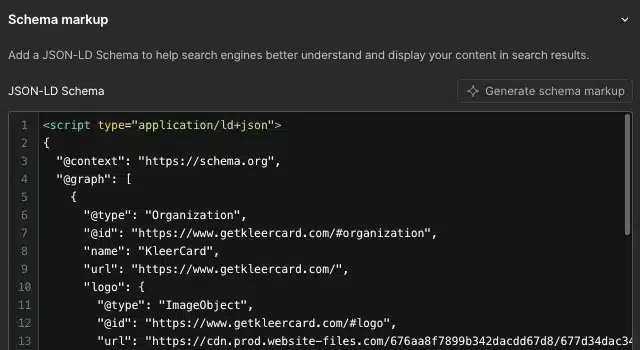
Match markup to visible content on the page. If the schema says one thing and the page shows another, search engines may ignore it.
Launch Without an SEO Checklist
Every launch should include an SEO checklist covering indexability, redirects, canonical links, metadata, mobile rendering, and broken links. A site audit after launch catches issues that staging review often misses.
This mindset matters beyond websites too. The same discipline behind technical QA also appears in channels like email, where details in Google’s sender requirements for avoiding spam issues can affect deliverability.
A Simple Webflow SEO Fix Process
Start with crawlability first. Confirm indexing rules, the XML sitemap, robots.txt, canonicals, and redirects before touching copy or design details.
Then improve metadata, on-page SEO, internal linking, page speed, and structured data. For CMS-heavy sites or brands publishing often, monthly reviews are a smart baseline.
Webflow is good for SEO, but only when the setup is intentional. One of the biggest mistakes is assuming the platform handles everything automatically.
If you want to stop duplicate content in Webflow, disable indexing on the staging subdomain, use canonical tags where needed, and clean up old URL variants with proper redirects. If you want better speed, compress images, reduce heavy scripts and video, and simplify layouts that create slow page loads.
Priority Checklist for Faster Wins
- Set the staging subdomain to noindex
- Review project settings for indexing and sitemap accuracy
- Confirm robots.txt and meta robots rules
- Check canonical links on key pages and CMS templates
- Validate 301 redirects after any migration
- Find and fix 404 errors and broken links
- Rewrite title tags and meta descriptions for search intent
- Clean up header structure on important pages
- Expand internal linking with descriptive anchor text
- Compress media files and review lazy loading
- Add structured data where it matches visible content
A polished design does not replace SEO discipline. Webflow gives you the tools, but rankings still depend on how well you use them.