
This tutorial focuses on the setup inside Webflow CMS. A Webflow site can underperform in Google if the SEO setup is weak at the CMS level.
Most problems come from the same few issues: duplicate metadata across collection items, poor indexing controls, messy URL structure, and collection templates that look good in the Designer but fail basic on-page SEO checks.
By the end, you will have a repeatable publishing workflow for blog posts, landing pages, and other CMS-driven pages that supports crawlability, cleaner SERP presentation, and less manual rework as your content library grows.
Why Webflow CMS SEO Setup Matters
Publishing content without structured SEO settings creates avoidable losses.
Search engines may see duplicate metadata, index low-value pages, miss important collection items, or struggle to understand which version of a page should rank.
Webflow gives you strong control over project settings, page settings, CMS collections, and template-level SEO settings.
That control only helps if you configure it in the right order and build dynamic SEO settings that scale.
The goal is a working system inside Webflow that gives each important page a unique title tag, a useful meta description, a clean canonical URL, and crawlable content that aligns with search intent, and also supports AEO.
If your content hierarchy, structured data, headings, and summaries are clear, your pages are easier for search engines and answer engines to interpret.
What This Tutorial Covers
This walkthrough covers page-level SEO fields for static pages and collection template pages.
It also covers project-level settings, indexing controls, sitemap behavior, and publishing checks that prevent common launch mistakes.
You will see how to optimize the homepage, services pages, category pages, contact pages, and CMS-driven content.
You will also learn how to map dynamic fields so each collection item inherits useful metadata automatically.
What Success Looks Like
A strong result is simple to recognize.
Each important page has unique metadata, a readable URL slug, clear headings, and no accidental indexing conflicts.
Your CMS collection pages should not require manual SEO edits every time you publish.
Instead, dynamic SEO settings should populate title tags, meta descriptions, Open Graph title fields, and Open Graph description fields in a way that stays readable and relevant.
Start With the Right SEO Foundation in Webflow
Before editing metadata, fix the foundation.
If your domain setup, SSL, indexing controls, or information architecture are messy, even strong content can struggle with Google indexing and crawlability.
Start by choosing one preferred domain. Then confirm HTTPS, responsive design, mobile usability, and a logical site structure that supports both users and search engines.
You also need to decide which pages should be indexable. Not every page belongs in the XML sitemap, and not every utility page should be available in search.
Set a Single Preferred Domain
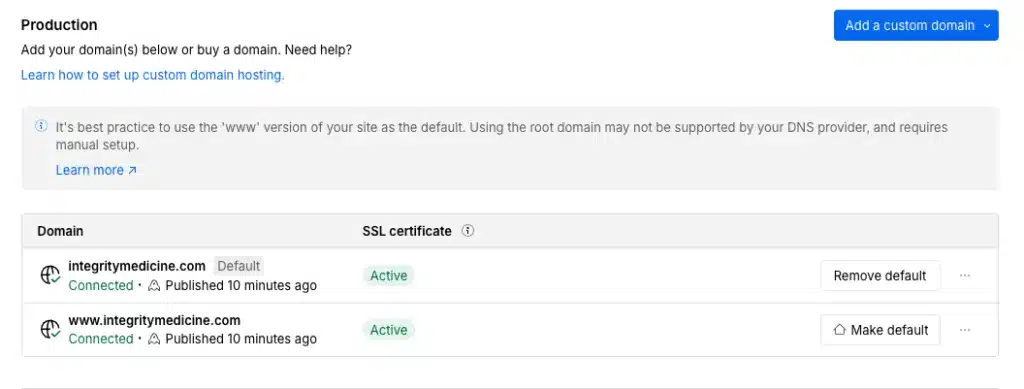
Use one primary domain for the public site and redirect all alternate versions to it.
That usually means forcing either the www or non-www version, then making sure Webflow staging URLs are not treated like live content.
If multiple versions of the root domain are accessible, authority gets split. That can create duplicate content signals and index clutter that weakens ranking performance.
In Webflow project settings, verify the connected domain and publish only to the preferred production version.
If you use a subdomain for a separate purpose, treat it as a deliberate SEO decision rather than a convenience.
Subdomains can make sense for apps, help centers, or localized experiences.
They can also dilute focus if content that should live on the main domain is separated without a clear reason.
Review Crawl and Index Basics
Check whether important pages are indexable and whether low-value pages are intentionally excluded.
That includes thank-you pages, test pages, duplicate campaign pages, and thin content that should not compete in search.
Review your robots.txt behavior and page-level indexing controls.
A single accidental noindex setting can block an entire section from visibility.
You also want to review sitemap indexing behavior. If a page should rank, it should usually be crawlable, indexable, internally linked, and included in the sitemap.
If a page should not appear in search, handle it intentionally with noindex, exclusion from the sitemap, or both depending on the use case.
Configure Project-Level SEO Settings
Project settings should come before individual page edits.
This is where Webflow lets you control sitewide behavior that affects indexing, domain consistency, social sharing defaults, and technical SEO stability.
Open the project settings and review the SEO settings tab first.
Then confirm publishing, SSL, and any custom code that could affect rendering or crawlability.
On larger CMS-driven sites, project-level controls reduce human error. They create a baseline so every new page does not start with preventable technical problems.
Enable Sitemap and Indexing Controls
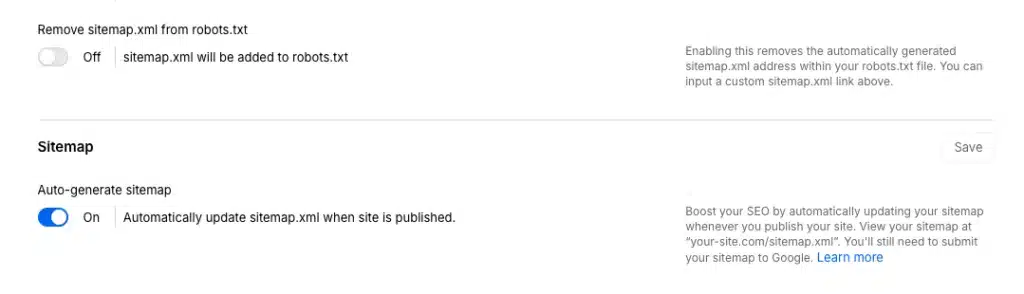
Turn on the XML sitemap for pages you want search engines to discover.
This gives Google and other search engines a cleaner path to your important URLs, especially when your CMS collection grows quickly.
Then verify that indexing is enabled for the site sections that matter.
If key templates or pages are blocked by default settings, your content may never get a fair chance to rank.
Be careful with temporary launch settings. Sites often go live with noindex still active from staging or pre-launch review, and that mistake can delay visibility for weeks.
Confirm Technical Site Settings
Check that SSL is active and that the site resolves correctly over HTTPS. A secure version is no longer optional for trust, browser behavior, or SEO.
Review your publishing setup across the main domain and any subdomain environments. If a staging version is still accessible and crawlable, it can create duplicate content issues.
Audit any custom code snippets that inject meta tags, scripts, or redirects. Poorly implemented code can conflict with Webflow SEO settings, damage page speed, or create canonical problems.
If you are still deciding whether Webflow is the right platform for your stack, our comparison of how Webflow and WordPress differ for SEO and site management gives useful context.
Optimize Static Pages First
Static pages are usually your highest-value assets.
That includes the homepage, service pages, about pages, contact page, pricing page, and any landing page with strong commercial intent. These pages deserve manual attention.
Do not rely on generic defaults when a page is central to revenue, lead generation, or brand visibility. Use keyword research and search intent to guide the copy.
Then align the title tag, meta description, URL slug, H1, and content hierarchy with what users expect to find.
Write Better Title Tags and Meta Descriptions
A title tag should lead with the main topic of the page.
Put the clearest keyword idea near the front, then add brand context if it improves recognition or CTR. For example, a service page should usually mention the service first and the company second. A homepage may lead with the brand plus a category or value statement if branded search is strong.
Your meta description should summarize the page in plain language and give a reason to click.
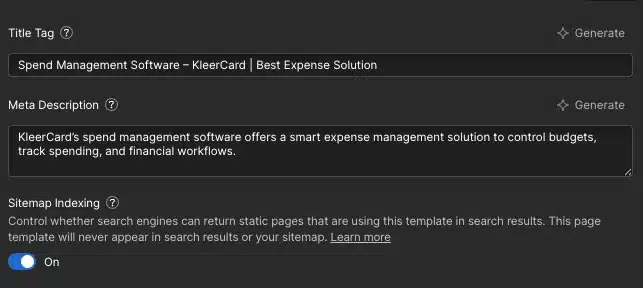
It does not directly improve rankings, but it strongly affects SERP presentation and can improve CTR when it matches search intent.
Also: you should avoid copying the same structure across every page. If every service page says the same thing with only one word changed, you create duplicate metadata patterns that waste ranking opportunities.
Clean Up URLs and Headings
Use readable URL slugs that reflect page purpose. Shorter is often better, but clarity matters more than brevity. And a clean URL structure also supports information architecture.
Users should be able to guess what a page contains based on the path, especially for category pages and nested content.
It’s important that each page has one clear H1.
Subheadings should support the page topic and create a useful content hierarchy for both readers and search engines.
In Webflow, review these settings in the Pages panel and page settings for every priority page.
If you need a stronger foundation before moving into advanced setup, this primer on the essentials of Webflow search optimization is a useful companion.
Set Up Dynamic SEO Fields for Webflow CMS Collections
This is where Webflow CMS becomes powerful for SEO.
A well-built CMS collection can generate unique metadata for hundreds of pages without forcing your team to manually rewrite the same fields on every publish.
The key is mapping dynamic fields carefully. If you use the wrong field combinations, you can end up with awkward titles, truncated descriptions, or duplicate metadata across collection items.
In Webflow, open the collection template and connect SEO settings to CMS fields. That lets each collection item pull from its own title, summary, category, author, or custom dynamic field.
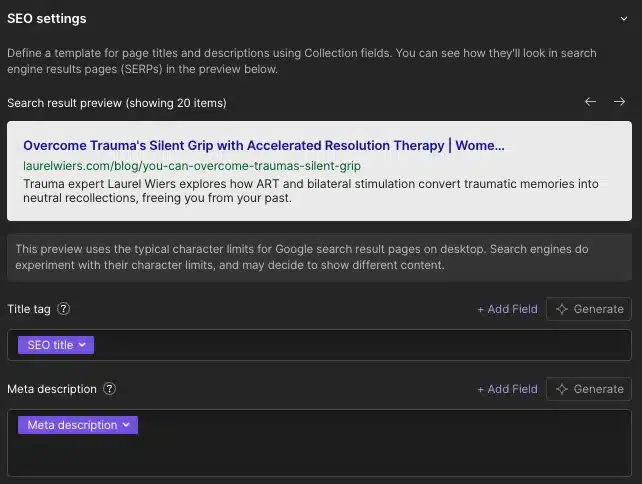
Map CMS Fields to SEO Settings
Use fields that naturally describe the page.
For a blog post, that often means the article title for the title tag and a summary or excerpt field for the meta description.
For a resource library or case study CMS collection, you may use title, industry, service type, or result-focused summary fields.
The collection template should also support Open Graph settings.
Map the Open Graph title and Open Graph description to dynamic fields so social previews stay relevant when pages are shared.
If your CMS includes a custom SEO title field and a custom SEO description field, use those for maximum control. If not, create them.
That small structural change gives editors far more flexibility and prevents template-wide repetition.
Create a Repeatable Metadata Formula
A simple formula works well for titles.
Use the article topic or page title first, then add the brand name if space allows.
Examples include:
- Article Topic | Brand Name
- Service Name in Market | Brand Name
- Category Topic Resources | Brand Name
For descriptions, use a summary plus a clear value statement.
That might be a concise explanation of what the reader will learn, what problem the page solves, or what action the page supports.
Keep the formula readable. Do not stuff keywords or force every field into the output just because it is available.
Handle Edge Cases in CMS SEO
Not every collection item should use the default formula unchanged.
Cornerstone content, high-priority landing pages, and pages with unusual search intent often deserve manual overrides.
Create optional fields for custom SEO copy, and use them instead of the default dynamic SEO settings. This protects your best content from generic metadata. (Also watch for empty fields. If a summary field is blank, your meta description may render badly or not at all!)
Build your publishing workflow so editors check required dynamic fields before a page goes live.
If your team is experimenting with AI-assisted page creation, our review of Webflow’s AI site builder and where it fits in a real workflow can help you separate speed gains from SEO risk.
Improve On-Page SEO Inside CMS Templates
Metadata alone will not carry a weak template. A template flaw repeated across 300 pages becomes a sitewide SEO problem.
Your collection template needs to support strong on-page SEO, clean content hierarchy, internal linking, image optimization, and a good user experience across every CMS item.
This matters even more as your site grows.
Use Search-Friendly Template Structure
Each CMS page should have one clear H1 tied to the main topic. That is usually the collection item title.
The rest of the page should support that topic with descriptive intro copy, logical H2 sections, and content blocks that answer related questions.
For blog content, structure matters. A short introduction, useful section headings, and scannable formatting make the page easier to understand for users and for search engines.
Add related posts, categories, breadcrumbs, or supporting navigation when they improve discovery. That strengthens internal linking and helps search engines understand relationships between pages.
It also supports AEO by making topical connections easier to parse.
Optimize Images and Media
Be careful with large media files, because they can quietly damage performance.
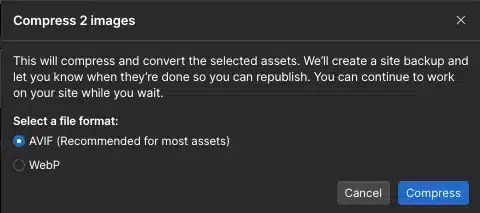
A template with oversized images can drag down page speed and Core Web Vitals across an entire collection. Compress images before upload and use dimensions that match the design. Do not upload a 4000-pixel image if the layout only displays 1200 pixels.
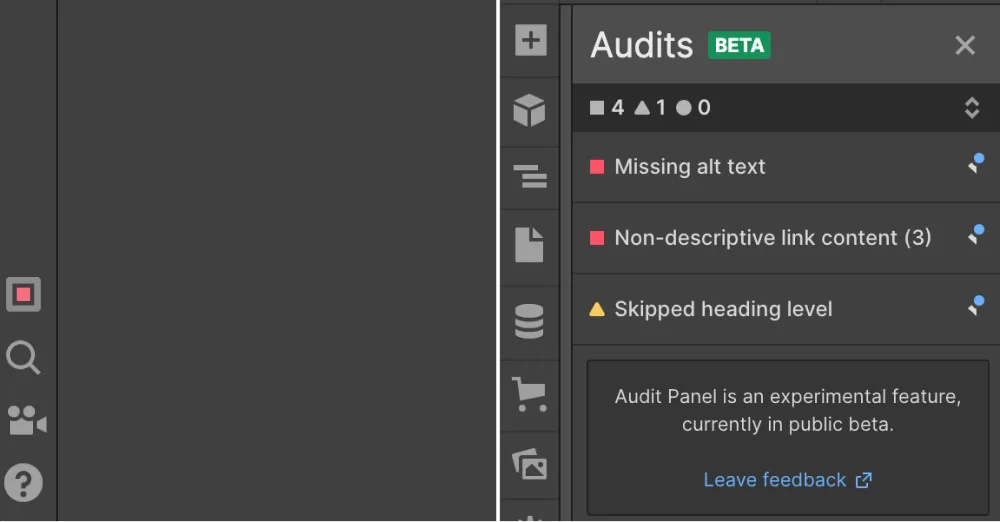
Add descriptive alt text to meaningful images. Alt text helps accessibility and gives search engines more context about visual assets.
Use meaningful filenames where possible, especially for key visuals and diagrams. For videos, embeds, and animations, be selective. Too many third-party scripts can increase layout shift, hurt mobile usability, and slow rendering.
Strengthen Internal Linking
Internal linking is one of the easiest wins on a Webflow site.
Link top-level pages to important collections, and link collection items to related services, categories, or next-step pages where it makes sense.
Use anchor text that describes the destination naturally.
Avoid generic phrases like “click here,” but also avoid stuffing exact-match keywords into every link. For example, a blog post about template setup might link readers to a deeper guide to improving Webflow SEO across an entire site.
That kind of contextual connection helps users move through the site and helps search engines understand topic clusters.
Add Technical SEO Essentials Before You Publish
Technical cleanup prevents strong content from underperforming.
A page with good writing can still lose visibility if canonical behavior is wrong, redirects are missing, or mobile rendering is poor.
Before publishing, review canonical URL behavior, redirects, structured data opportunities, and template weight. This is also the right time to use an SEO checklist. A repeatable checklist reduces mistakes when multiple people touch the publishing workflow.
Check Canonicals, Redirects, and Sitemap Status
Confirm that each page points to the correct canonical URL.
This tells Google which version of a page should be treated as the primary one when similar URLs exist. If you change a URL slug, add a 301 redirect from the old path to the new one.
That preserves link equity and prevents users from landing on broken pages. Review removed content too. If an old page has a close replacement, redirect it.
If not, make a deliberate decision about whether a 404, 410, or broader redirect is appropriate. Then verify sitemap status.
Important pages should appear in the sitemap unless there is a clear reason to exclude them.
Review Performance and Core Web Vitals
Performance problems often come from accumulation, not one dramatic error. A few heavy images, a few extra scripts, and a few layout shifts can drag down Core Web Vitals over time.
Audit image weight, font loading, script usage, and layout stability. Pay special attention to collection templates because one inefficient design pattern gets repeated everywhere.
Check mobile behavior carefully. Responsive design is not just about fitting the screen. It is about readable text, stable layout, tap-friendly controls, and fast loading under real conditions.
If your content includes process-based tutorials, structured data such as HowTo schema can help search engines understand the format more clearly. Webflow may require custom code for some structured data implementations, so test carefully after adding it.
Publish, Test, and Validate Your Setup
Publishing is the start of validation, not the end of the job.
The live version can reveal metadata issues, rendering problems, indexing mistakes, or broken CMS variables that were easy to miss in preview mode. Test every important page after publishing. Then document the process so your team can repeat it consistently.
Run a Post-Publish SEO Check
Open the live page and inspect the source output.
Check the title tag, meta description, canonical URL, Open Graph title, Open Graph description, and any other key meta tags. Make sure dynamic fields render correctly on real URLs.
A missing field in one collection item can produce empty metadata, malformed snippets, or weak social previews. Review the page visually too. Confirm the H1, body content, image loading, internal links, and mobile presentation all match the intended structure.
Monitor Indexing and Early Performance
Submit or review the sitemap in Google Search Console.
Then inspect important URLs to see whether Google can crawl and index them as expected. Watch impressions, clicks, indexing coverage, and crawl errors during the first few weeks.
Early data often reveals patterns such as pages excluded by noindex, duplicate canonical signals, or weak CTR caused by poor metadata. A quick site audit after launch can catch template-wide issues before they spread across dozens or hundreds of collection items.
Common Webflow CMS SEO Mistakes to Avoid
- Most ranking losses on Webflow sites are preventable.
- The platform is rarely the problem by itself.
- The real issue is usually setup discipline.
Metadata and Indexing Errors
- One common mistake is reusing the same title tag and meta description across many CMS items. That creates duplicate metadata and weakens relevance signals in the SERP.
- Another common issue is accidental noindex settings. Important pages sometimes stay hidden because they were blocked during staging and never updated before launch.
- Watch for sitemap omissions. If high-value pages are excluded from the XML sitemap and weakly linked internally, discovery can be slower than it should be.
Template and Content Errors
- Many collection templates ship with weak heading structure. Pages may miss a proper H1, bury the main topic, or rely too heavily on visual styling instead of semantic structure.
- Try to avoid thin content on a page. A page with only a title, image, and two lines of text rarely earns strong visibility unless it serves a very specific purpose.
- Poor media handling also hurts performance. Heavy images, missing alt text, and unnecessary embeds can weaken page speed, mobile usability, and overall user experience.
FAQ
How Do You Set SEO in Webflow?
Start in project settings with your domain, SSL, sitemap, and indexing controls.
Then optimize static pages with unique metadata, map dynamic SEO settings for each CMS collection, improve template structure, and validate everything after publishing.
In practice, that means checking page settings, collection template fields, canonical behavior, internal linking, and post-launch indexing in Google Search Console.
The strongest results come from using one documented SEO checklist for every publish.
What Are the 3 C’s of SEO?
A practical version is content, code, and credibility.
In Webflow, content means useful pages that match search intent, code means clean technical SEO and crawlability, and credibility comes from internal linking, authority signals, and a site structure that supports trust.
What Are the 4 Pillars of SEO?
The four pillars are technical SEO, on-page SEO, content, and authority.
This tutorial focuses most heavily on technical setup and on-page execution inside Webflow CMS, because those are the areas where configuration mistakes often block good content from performing.
What Are the 4 Stages of SEO?
The four stages are research, setup, optimization, and measurement.
For Webflow CMS, that means doing keyword research and planning the information architecture first, configuring project settings and SEO settings second, improving templates and metadata third, and tracking indexing and performance last.