
Your Webflow site’s speed determines your Google rankings, your bounce rate, and whether the visitors you paid for stick around or leave. A page loading in under 2 seconds converts at roughly 3x the rate of one loading in 5 seconds. Google’s March 2026 core update placed greater emphasis on performance and holistic page experience, meaning sites that were borderline on Core Web Vitals last year are now feeling the pressure more acutely.
Webflow gives you a structural head start. Clean HTML output, AWS edge hosting at 100+ global locations, built-in WebP conversion, and automatic code minification come standard. In our experience auditing Webflow sites, they often achieve significantly faster LCP scores than comparable WordPress builds and meaningfully better CLS scores than Shopify. Those advantages are real. They’re also conditional.
An unoptimized Webflow site with heavy custom code and a dozen third-party scripts can perform worse than a well-tuned WordPress site. The platform gives you the tools. You still have to use them.
The problems that slow Webflow sites down are predictable and concentrated in three areas: images, third-party scripts, and fonts. This guide covers each fix in priority order, starting with the changes that produce the largest improvements.
How Fast Should a Webflow Site Load?
A well-optimized Webflow site should hit an LCP (Largest Contentful Paint) under 2.5 seconds, an INP (Interaction to Next Paint) under 200 milliseconds, and a CLS (Cumulative Layout Shift) score below 0.1. These are Google’s current “good” thresholds for Core Web Vitals. The stronger sites we work on target LCP under 2.0 seconds, since Google’s increased focus on performance post-March 2026 means faster sites gain a more meaningful ranking advantage over those sitting just inside the threshold. Sites that pass all three metrics see notably lower bounce rates compared to sites that fail even one.
If your site loads in over 3 seconds on mobile, you’re losing a measurable portion of visitors before they read a single word.
Core Web Vitals: The Three Metrics That Control Your Rankings
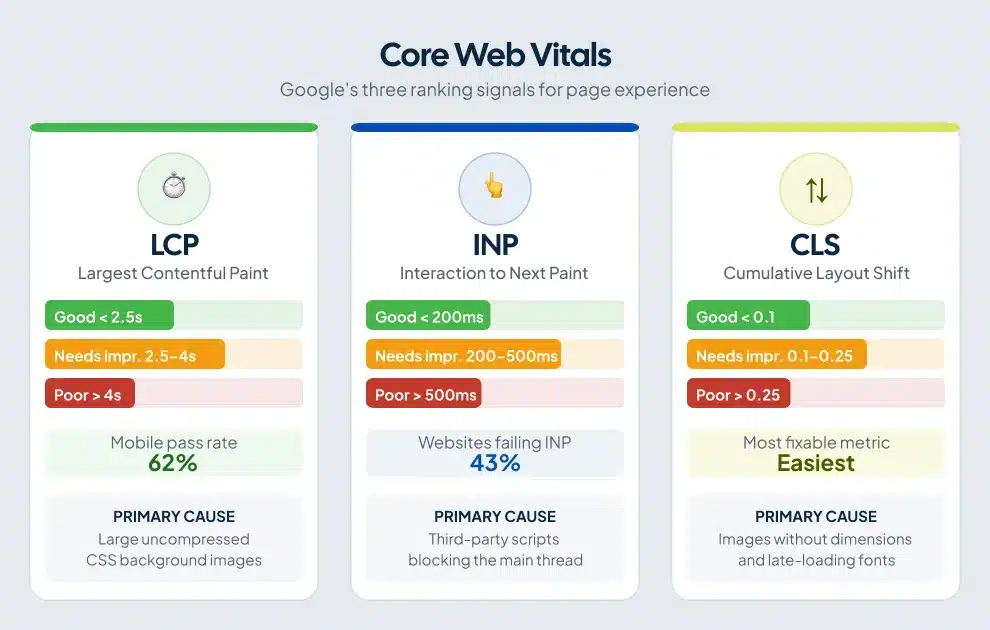
Google ranks your Webflow site based on three Core Web Vitals. Each measures a different dimension of user experience, and failing any one of them carries ranking consequences.
LCP: Loading Performance
LCP measures how long it takes for the largest visible element on the page to render. Your hero image, headline, or background video typically triggers it. Google’s good threshold is under 2.5 seconds. Needs improvement runs from 2.5 to 4.0 seconds. Above 4.0 seconds is poor.
Per the 2025 Web Almanac, only 62% of mobile pages hit the good threshold, making LCP the hardest Core Web Vital to pass. On Webflow sites specifically, the culprit is almost always the same: a large, uncompressed image set as a CSS background element.
INP: Responsiveness
INP measures how fast your page responds to every click, tap, or keypress during a session. Google replaced First Input Delay (FID) with INP in March 2024 because FID only captured the first interaction. INP captures all of them, at the 95th percentile. If a visitor makes 100 interactions on your site, the 95th slowest one determines your score.
The good threshold is under 200ms. Per CrUX data from early 2026, around 43% of websites still fail INP, making it the most commonly failed Core Web Vital. For Webflow sites, the primary cause is third-party scripts competing for main thread processing time.
CLS: Visual Stability
CLS measures how much page elements shift unexpectedly during loading. A font swap that nudges your headline, or an image without dimensions that pushes content down as it loads, contributes to your CLS score. The good threshold is below 0.1.
Webflow sites generally perform well on CLS because you control layout precisely. Unset image dimensions and late-loading embeds still cause failures, but CLS is the most fixable of the three.
Before touching anything, run your published URL through Google PageSpeed Insights. Focus on the field data section, not the lab data. Field data reflects real visitors on real devices. Lab data reflects a simulated load. Those two numbers can differ significantly, and Google ranks you on field data.
Fix 1: Images (Biggest Impact, Fix This First)
Images account for 60-70% of page weight on the typical Webflow site. In our experience auditing Webflow builds, an image is the root cause the vast majority of the time when a site runs slow. Creators upload high-quality visuals and skip compression. The problem compounds as pages grow.
For a deeper look at image formats, dimensions, and alt text, see our complete image optimization guide for Webflow.
Compress Before You Upload
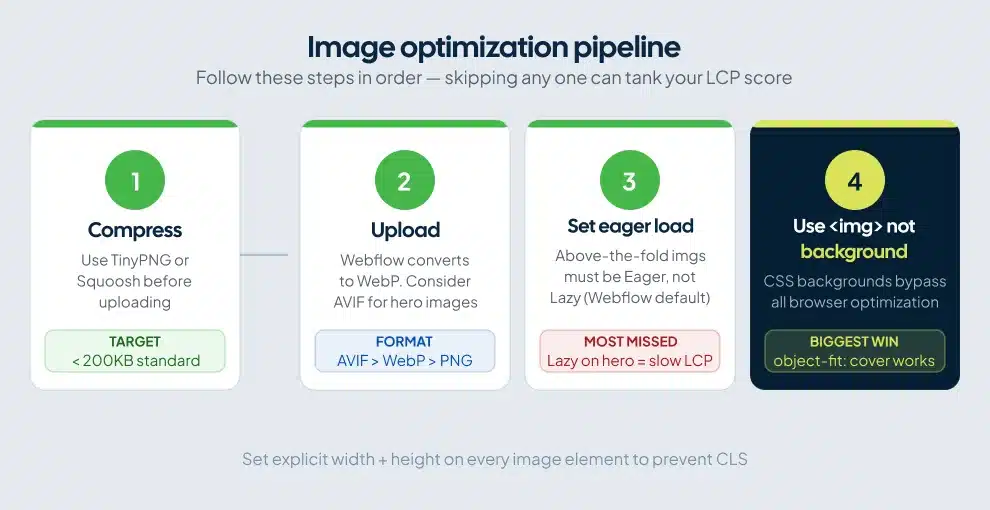
Webflow converts uploaded images to WebP automatically, but the compression it applies depends on what you give it. Upload a 4MB PNG and Webflow still has 4MB of source data to work with. Use TinyPNG or Squoosh before uploading. Target files under 200KB for most images and under 100KB for thumbnails. You’re not degrading quality at that threshold — you’re removing data browsers can’t display anyway.
Use AVIF for Hero Images
WebP is a solid default. AVIF is better. AVIF files typically run 20-50% smaller than WebP at comparable quality depending on content type, and browser support is strong enough to use it for your most important above-the-fold assets. With a <picture> element, you can serve AVIF to supporting browsers and WebP as the fallback, which Webflow’s custom code supports.
Never Lazy-Load Your LCP Image
This is the single most common LCP mistake on Webflow sites. Lazy loading defers image loading until the user scrolls near it. Your hero image sits in the viewport on load, which means lazy loading tells the browser to wait before loading the page’s most critical visual. The result is a slow LCP on every page visit.
In Webflow, click the hero image, open Element Settings, and confirm “Load” is set to “Eager.” Webflow sets images to lazy load by default, which is correct for everything below the fold. Above the fold, flip it.
Replace Background Images With img Elements
CSS background images cannot be lazy-loaded, cannot receive fetch priority signals, and cannot be properly optimized by the browser. When you build a hero section using Webflow’s background image setting, you lose all browser-level optimization.
Replace background images with a regular <img> element. Set it to object-fit: cover, position it behind your content with CSS or z-index, and you get the same visual result with full browser optimization. This single change fixes LCP on more Webflow sites than any other.
Set Explicit Dimensions on Every Image
Images without explicit width and height attributes cause CLS because the browser reserves no space for them during load. Content shifts as images render. In Webflow, set width and height on every image element. For responsive images, set the aspect ratio instead of fixed pixel values.
Fix 2: Third-Party Scripts (Biggest INP Impact)
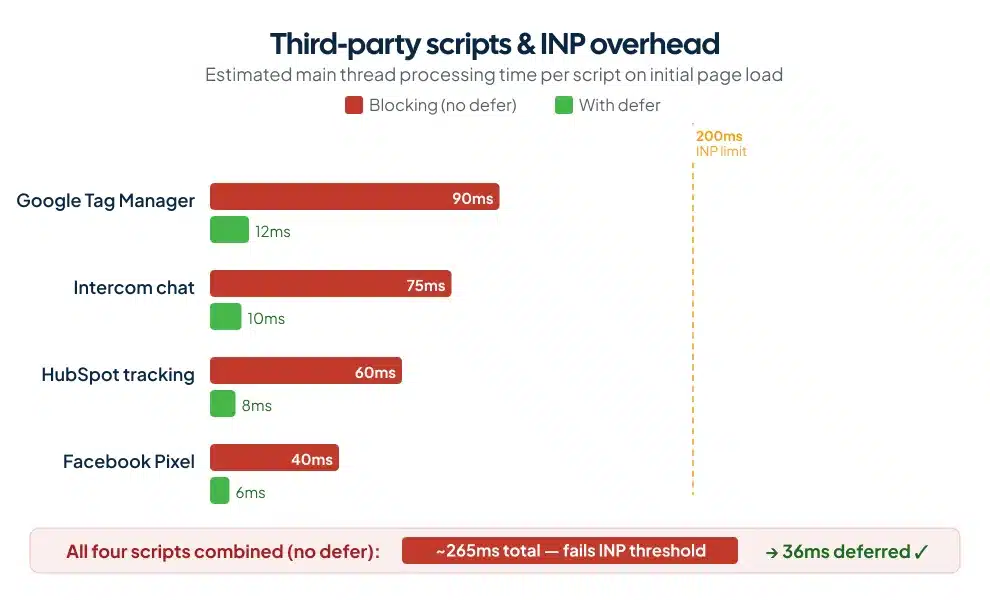
Third-party scripts are the primary INP killer on Webflow sites. Load Google Tag Manager with Intercom, HubSpot tracking, Facebook Pixel, and a cookie consent tool, and you can add 200ms or more of processing overhead to every user interaction. A visitor clicks your CTA. The browser queues that click behind all that JavaScript. The response feels laggy. Your INP score reflects it.
For a full breakdown of how to add and manage custom code without hurting performance, see our guide to managing custom code without performance bloat.
Audit Every Script Running on Your Site
List every external script loading across your Webflow site. For each one, ask a direct question: does this contribute to a conversion or revenue outcome? Remove anything that doesn’t pass that test. Webflow sites accumulate scripts over time as tools get added and never removed. Cutting to the essential few produces the largest INP improvement available. Deleting a script is faster and more effective than any code-level optimization.
Defer Everything You Keep
In Webflow’s Project Settings under Custom Code, add the defer attribute to every script tag. Deferred scripts download in parallel and execute after the main content renders, so they don’t block your LCP or early interactions. Most third-party scripts work fine with defer. Test after applying it to confirm nothing breaks.
Use Google Tag Manager to Delay Tags
GTM consolidates all your marketing tags into a single request. More usefully, you can configure GTM to delay all tag loading by 3-5 seconds after the initial page load. Visitors see and interact with your content while tracking scripts load in the background. Conversion tracking still fires correctly. INP scores improve because the main thread is free for user interactions during those first critical seconds.
Load Scripts Only Where Needed
Webflow’s Page Settings let you add custom code per page. A chat widget belongs on your contact page, not your blog. Conversion scripts belong on thank-you pages. Restricting scripts to the pages where they’re relevant reduces the processing burden on every other page load across your site.
Fix 3: Fonts
Fonts cause two distinct performance problems. They block rendering, which hurts LCP. They trigger layout shift when the browser swaps from a system fallback to your custom font, which hurts CLS. Both are fixable with the same approach.
Self-Host Your Fonts
Webflow loads Google Fonts via an external DNS lookup and download from Google’s servers. That round trip takes time and delays first render. Download your fonts from Google Fonts directly, convert them to WOFF2 format using FontForge, and upload them to Webflow’s Assets panel. The font then loads from the same edge server as your site, cutting one external request from your critical render path.
Strip Unused Characters
A full Google Font file includes Latin extended, Cyrillic, Greek, and dozens of other character sets. An English-language site uses almost none of that. FontForge lets you delete every character outside the range your site needs. A full font file that starts at 400KB can compress to under 80KB after subsetting. No visible change to the site. Significant change to load time.
Limit Font Weights
Each font weight is a separate file download. If your design uses Regular (400) and Bold (700), load only those two. Loading six weights because they looked useful during the design phase adds 400-600KB to your page weight for no visible return.
For body text specifically, consider system fonts. Georgia, -apple-system, and Arial render immediately with no download. Keeping your custom font on headings and switching body text to a system font can improve LCP without any detectable visual change for most users.
Fix 4: Clean Up Unused Styles and Interactions
Webflow projects accumulate unused CSS classes and interactions over time. Designers prototype a component, restyle it, and the old classes stay attached to nothing. These inflate your CSS file without contributing anything rendered.
Open Style Manager, click Clean Up, and remove unused styles. On a mature Webflow project, this can remove hundreds of class definitions. Run the same audit on Interactions: open the Interactions panel, clean up, and delete any triggers or animations attached to elements that no longer exist. Unused interactions sometimes execute JavaScript in the background, damaging INP scores in ways that are difficult to trace back to their source.
Watch Your DOM Size
Webflow’s visual builder makes deep nesting easy, and deep nesting creates large DOMs. Google’s general guidance recommends keeping total DOM nodes below 1,500. A complex Webflow page with many sections, nested symbols, and CMS collections can exceed that without catastrophic failure, but the rendering overhead accumulates. Flat structures load faster. Avoid nesting symbols inside other symbols for layout purposes.
Fix 5: Use Webflow’s Built-In Performance Tools
Two built-in Webflow tools go underused by most site owners.
Site Health Scan. From your Webflow dashboard, the Site Health Scan audits performance, SEO, and hosting configuration. It produces a health score and step-by-step recommendations specific to your site’s setup. Run it before starting any manual optimization. It surfaces hosting misconfigurations and missed settings faster than a manual code review. You can also pair this with a review of your Webflow SEO settings to catch any configuration gaps that affect both speed and discoverability.
WebP conversion in the Assets panel. If you have existing images already uploaded in PNG or JPEG format, use the WebP conversion tool in Assets to compress them without re-uploading. This retroactively improves images from older page builds, including ones you may not remember are on the site.
Fix 6: Reduce Time to First Byte
TTFB measures how long your server takes to respond before content starts loading. Webflow’s AWS-backed hosting is fast. You can make it faster with one addition.
Put Cloudflare in front of your Webflow site. Cloudflare’s CDN caches your Webflow pages at edge nodes globally. A visitor in Sydney gets the cached version from a nearby Cloudflare node instead of fetching from AWS. The free plan works for most Webflow sites. The TTFB improvement is consistent and most noticeable for visitors outside North America.
Webflow’s managed hosting outperforms most custom server configurations on TTFB. The AWS edge caching, automatic SSL, and server optimization are pre-built into the platform. Replacing Webflow hosting with a custom server setup usually makes TTFB worse, not better.
Webflow Page Speed vs. Other Platforms
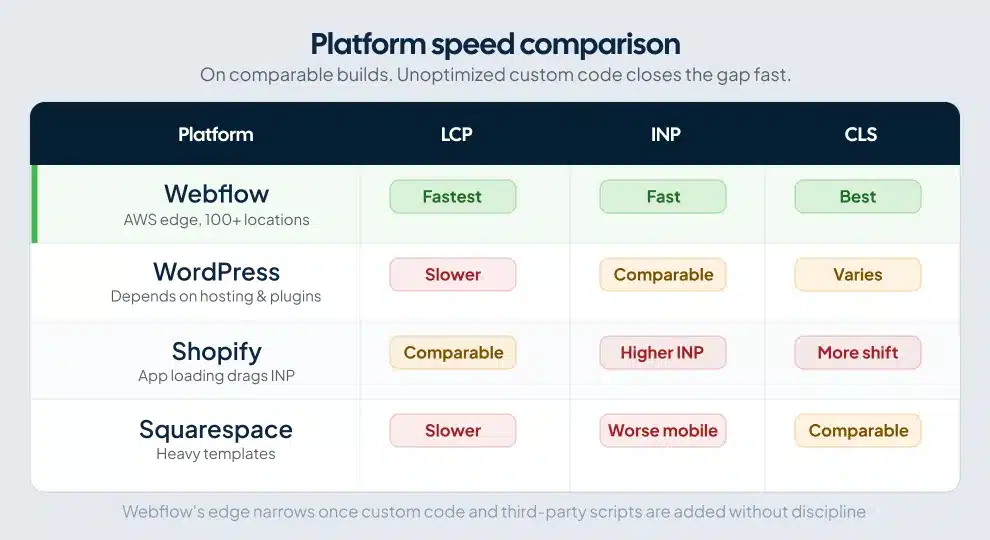
These advantages exist because Webflow generates clean, semantic HTML without the plugin overhead that degrades WordPress performance or the app-loading patterns that push Shopify’s INP higher. The gap closes fast once you start adding custom code and third-party scripts without discipline.
Webflow Page Speed Checklist
Core Web Vitals are a direct Google ranking signal, and page speed issues compound over time as traffic grows. Keep this list close to your Webflow SEO checklist and run both before every major page launch.
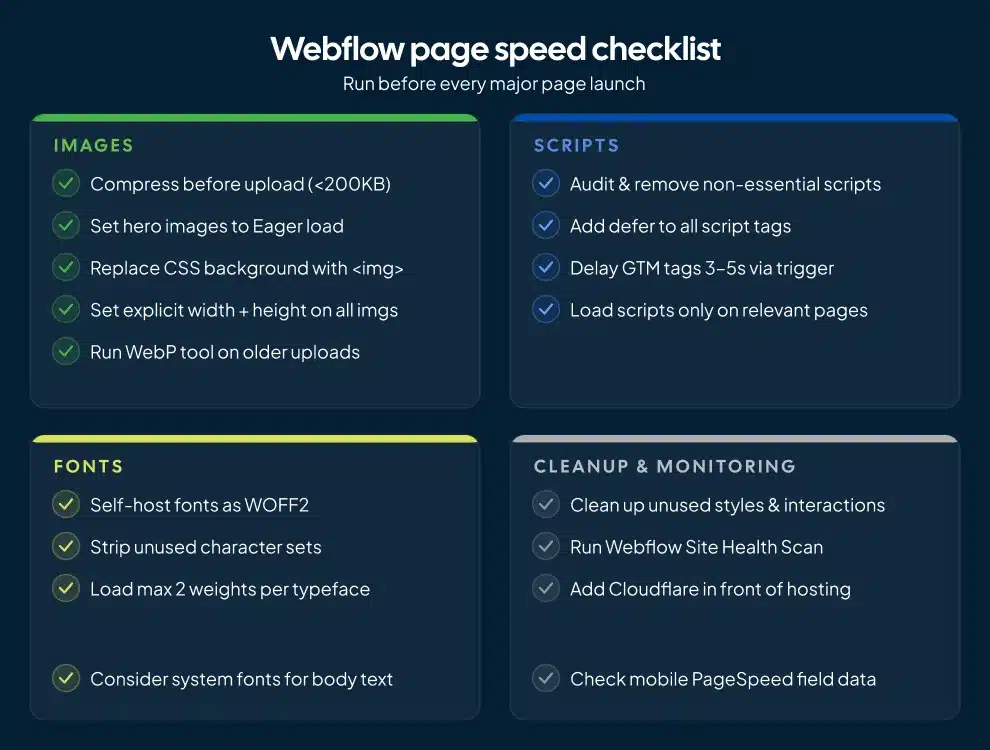
- Compress all images before uploading (under 200KB for standard images)
- Set all above-the-fold images to Eager load, not Lazy
- Replace CSS background images with
<img object-fit: cover>on hero sections - Set explicit width and height on every image element
- Defer all custom scripts in Project Settings
- Audit third-party scripts and remove any not tied to conversion or revenue
- Self-host fonts in WOFF2, stripped of unused character sets
- Load no more than 2 font weights per typeface
- Clean up unused styles and interactions via Style Manager
- Run Webflow’s Site Health Scan
- Add Cloudflare in front of your Webflow hosting
- Check mobile PageSpeed Insights field data separately from desktop
Frequently Asked Questions
Does Webflow have good page speed?
A blank Webflow page scores 100/100 on Google PageSpeed Insights due to clean HTML output, AWS edge hosting, and no plugin overhead. In practice, Webflow sites often achieve significantly faster LCP scores than WordPress on comparable setups, and better CLS scores than Shopify. Performance drops when sites accumulate uncompressed images, multiple third-party scripts, and heavy custom animations without optimization. The platform is fast. Specific implementation choices determine whether that speed reaches the visitor.
How do I check my Webflow page speed?
Run your published Webflow URL through Google PageSpeed Insights. Read the field data section first, not the lab data. Field data reflects real visits from real users. Also check Google Search Console’s Core Web Vitals report, which segments pages into “Good,” “Needs Improvement,” and “Poor.” Fix the poor pages first. Those carry the highest ranking risk. Webflow’s Site Health Scan in your dashboard adds platform-specific recommendations on top of those results.
Do Webflow animations hurt page speed?
Webflow animations hurt performance when they use layout-affecting properties like width, height, top, or left. Animations using CSS transforms (translate, scale, rotate) run on the GPU and don’t block the main thread. Scroll-triggered animations on layout properties are a common cause of both CLS and INP failures on Webflow sites. Audit your interactions and replace layout-affecting properties with transforms. The visual result is nearly identical. The performance difference shows up in your INP score.
Does Webflow automatically optimize images?
Webflow converts uploaded images to WebP and applies compression. It also sets images to lazy load by default. Those automatic steps help but don’t replace manual optimization. Large source files still produce large outputs. CSS background images bypass the optimization pipeline entirely. Lazy loading on above-the-fold images degrades LCP scores. Compress images before uploading with a tool like TinyPNG, confirm load behavior on hero images, and use the Assets panel’s WebP tool on any older uploads.
How does page speed affect Webflow SEO?
Google treats Core Web Vitals (LCP, INP, CLS) as direct ranking signals. For queries where multiple pages offer comparable content, performance acts as a tiebreaker. After Google’s March 2026 core update placed greater weight on holistic page experience, sites with poor INP scores saw measurable position drops. Every second of delay beyond the 2.5-second LCP threshold correlates with a meaningful increase in bounce rate, which compounds the ranking impact over time.
Fix the Biggest Problem First
The most common Webflow speed problem is a large, uncompressed hero image set as a CSS background, loading alongside multiple third-party scripts with no deferral. Fix those two, and the majority of Webflow sites will pass all three Core Web Vitals.
Start with PageSpeed Insights field data. Find the failing metric. Images cause LCP failures. Scripts cause INP failures. Unset dimensions and late-loading fonts cause CLS failures. The diagnostic path is short and the fixes are specific. You don’t need to optimize everything at once.
If you’d rather have a Webflow site built with performance as a constraint from the start, talk to the ClearBrand team’s Webflow performance optimization services. We build on Webflow with a conversion-first approach, and speed is part of that architecture from day one, not an afterthought.